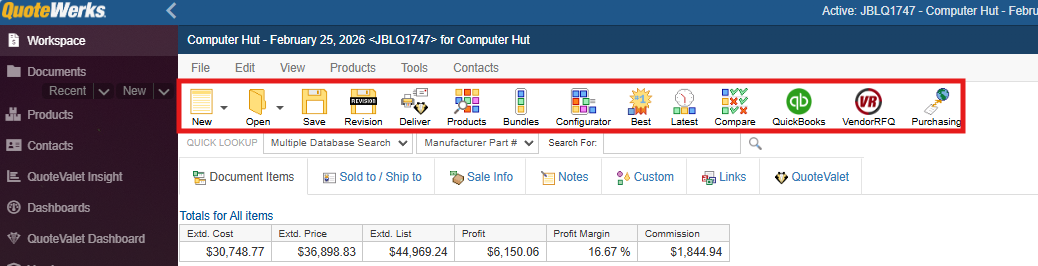
The Workspace shortcut will bring the user to the home screen in QuoteWerks Web. The Workbook contains the tabs for Document Items, Sold to/ Ship to, Sale Info, Notes, Custom, and QuoteValet.
The File, Edit, View, Products, Tools, and Contacts menus are also available in the Workbook area as well as the toolbar icons for New, Open, Save, Deliver and more, as outlined below.
Toolbar Icons
The icons below the drop-down menus provide you with quick access to different features and options.
New
The new button allows you to quickly create a new quote. Alternatively you can use the dropdown to create a new quote, order, invoice, or begin a new quote from an existing template.
Open
The open button opens the Documents Window where you can search existing documents and templates. The dropdown next to open will display the 10 most recent documents you have interacted with.
Save
The save button enables you to save the currently open document and opens the Save Quote window. Here you can name the document, assign a document and project number, as well as the status of the document. If you are integrated with a CRM or PSA this is also where you would select options for integration like creating a deal/opportunity. The options displayed here are different depending on what integration you are using.
Revision
The revision button allows you to create revisions or versioning for your document. Clicking on the revision icon will create a new revision of the document with the existing document number and an alphanumeric suffix. Saving a document as a revision gives you the option to delete the previous revision and/or update the document expiration date. Any revisions associated with a quote can be viewed by clicking on the View dropdown and selecting Associated Documents.
For more information see the Document Revisions help file.
Deliver
The deliver button is how you access the Print, Share, Publish, Deliver document window. This is where you go to build the output of your quote, email a PDF version of your quote, or to upload the quote to QuoteValet for customer approval. This window is also used to request document approval or to submit documents for peer review.
For more information see the Deliver Window help file.
Products
The products button is one of the ways to access the Product Lookup Window. This is where you go to search your product databases for products and services and add them to a quote.
For more information see the Product Lookup Window help file.
Bundles
The bundles button is how you access the Bundles window. Bundles are groups of products that are preconfigured and can be added to a document in a single click. This window gives you the ability to create new bundles, clone, edit or delete existing bundles, and add bundles to the currently open document.
For more information see the Bundles help file.
Configurator
The configurator button is how you access the Configurations window. Configurations are pre-built logical workflows that can walk sales reps through the process of selecting products with each step in the process being dependent of previous selections. This window gives you the ability to create new configurations, clone, edit or delete existing configurations, and add the output of those configurations to the currently open document.
For more information see the Configurations help file.
Best
The best button will open a window where you can select vendors you would like to search to find the lowest purchasing pricing for each of the items in your quote. Having made your vendor selections, QuoteWerks will refresh the cost and price values of each line item with the current prices and vendor name of the vendor that has the lowest purchasing price for the item.
For more information see the Refreshing Items with Latest or Best Pricing help file.
Latest
The latest button will query the vendor database associated with the selected item on the quote and update the item with the latest purchasing price values contained in that database.
For more information see the Refreshing Items with Latest or Best Pricing help file.
Compare
The compare button will open a window where you can select vendors you would like to search to find the lowest purchasing pricing for each of the items in your quote. After querying the selected vendor databases you are presented with a breakdown of pricing across vendors and can make a selection as to which price and vendor you would like to use on the quote. Once you have made your selection the selected item will be updated with the latest purchasing price values contained in that database. The vendor associated with that line will also be updated to reflect your selection.
For more information see the Comparing Vendor Prices help file.
QuickBooks
If you have the QuickBooks Online integration enabled there will be a QuickBooks icon. The QuickBooks button will open the Export to QuickBooks window where you can export documents and payments to QuickBooks.
For more information see the Using the QuickBooks Online Integration help file.
Vendor RFQ
If you are licensed to use VendorRFQ there will be a VendorRFQ button. The VendorRFQ button opens a new webpage where you can create new or interact with existing VendorRFQ requests.
For more information see the Vendor RFQ help file.
Purchasing
The purchasing button will open the Purchasing Window. Here you can create manual purchase orders, submit online orders, manage placed purchase orders, and track items as they are ordered and received.
For more information see the Purchasing help file.
Workbook Tabs
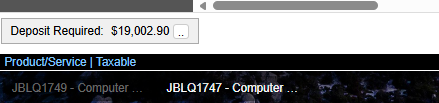
At the bottom of the Workbook, users can toggle between up to 5 different documents. The current document being displayed will be highlighted and the other documents grayed out. Switching between documents is as easy as clicking on the document not already selected.