Accelerated Implementation Guide
This document provides all the information you need to get QuoteWerks configured and to begin delivering quotes to customers. This document assumes you are logging in to QuoteWerks for the first time. Below each topic there are links to pages in the QuoteWerks help file where you can find additional information on the topic.
This help file contains information on the following topics:
To log into QuoteWerks navigate to https:\\na.quotewerks.com.
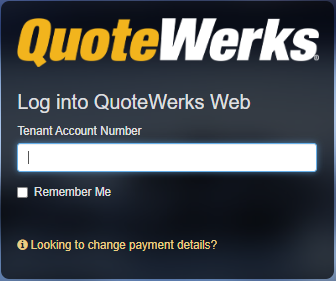
Here you are prompted to log in. You will need your tenant account number, user name, and password, all of which are emailed to you during the onboarding process. It is important that you save this information in secure location for future use.
Once logged in you are brought to a registration page where you are prompted to input information that will help get you set up. Once you have completed inputting the initial registration information you are brought to the Workspace. You will see a background along with a left navigation panel and a Help banner on the right. At the top right of the window you will also see the word Administrator and a hamburger menu.
The hamburger menu is a drop down and gives you options to change your payment information by clicking on Account, configure the logged in user’s preferences by clicking on My Preferences, show all logged in users for the tenant account by clicking Logged in Users, change the background of the Workspace by clicking on Change Wallpaper, and Generate a Support Access Link that can assist QuoteWerks support when troubleshooting in your environment.
Clicking on the word Administrator brings you to the My Preferences window for that user. This word will change to the logged in user’s name and can be used to set up each user’s preferences. See My Preferences below for more information and to continue the setup process.

Click on the word Administrator at the top right of the window. This is where you will configure preferences and settings associated with the logged in user’s profile. On this window there are 4 tabs: Personal, E-Mail, Misc, and Contact Manager.
For more information see the My Preferences help file.
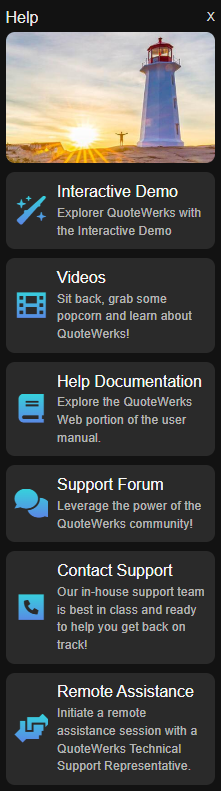
The help banner includes a number of resources that you can use to get started including an interactive demo that brings you through the creation of a quote, a link to the QuoteWerks video page, a link to QuoteWerks help documentation, a link to the QuoteWerks forum, a contact support button that brings you to the QuoteWerks support page at https://www.quotewerks.com/support.asp, and a button to initiate a remote session with QuoteWerks support.
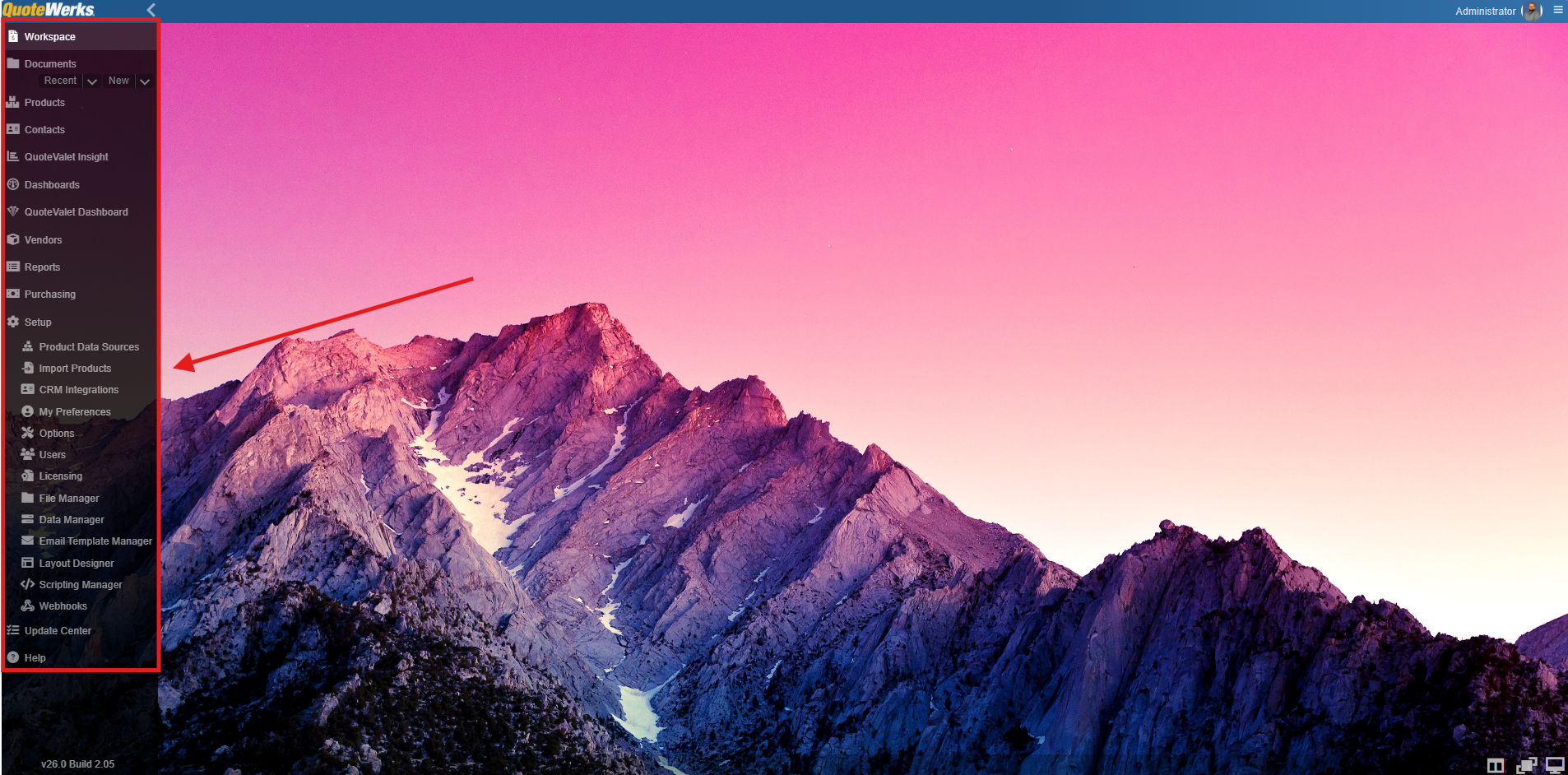
Along the left side of the screen is a collapsible navigation panel that contains a number of buttons to access different parts of QuoteWerks. Below is a description of each of the high-level menu options, which will be covered in more detail later in this guide.
For more information see the Navigation Panel help file.
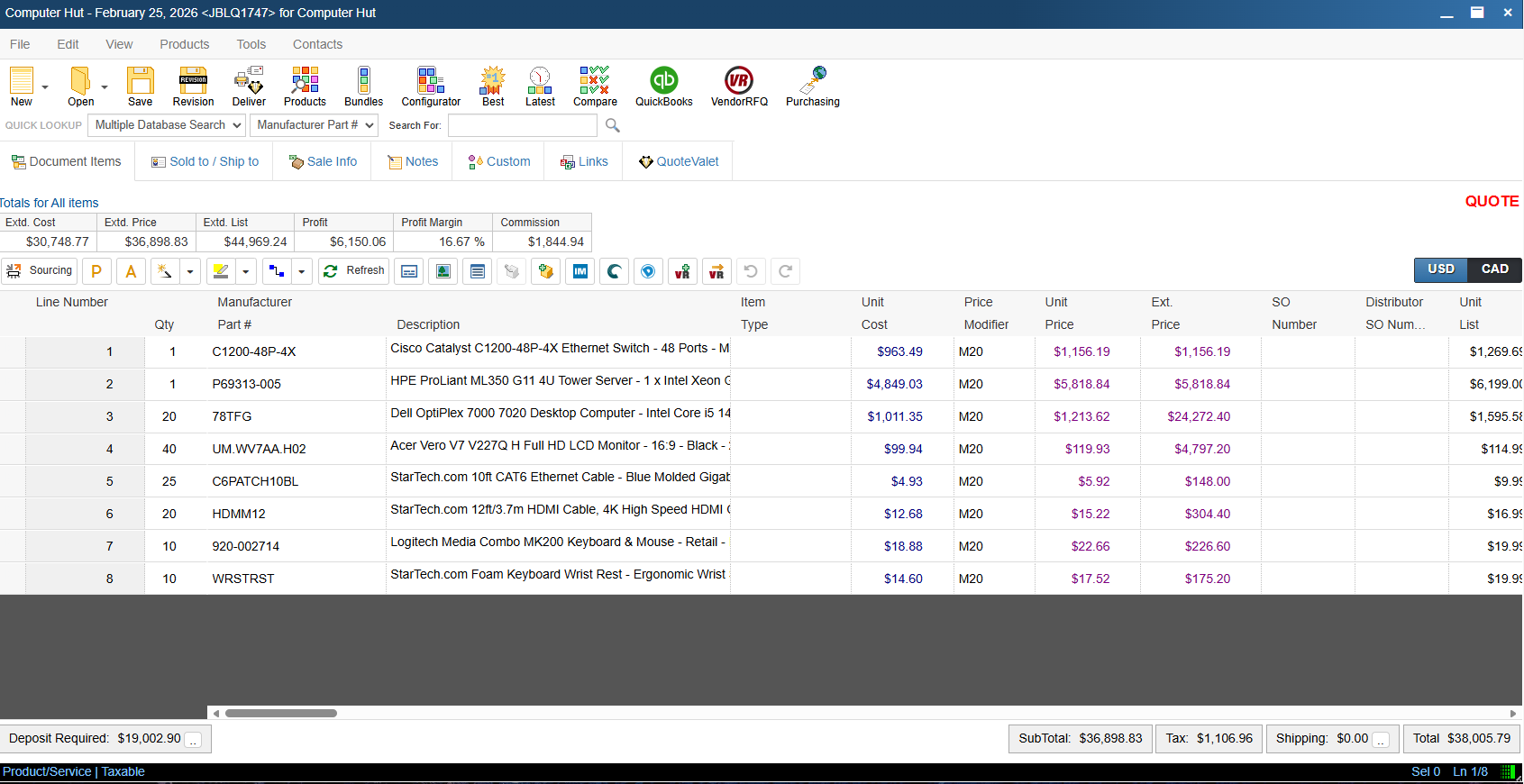
To open a new quote click on the New button from the left navigation panel. This opens the Quote Workbook which is a place where you can build quotes and other types of documents. The Quote Workbook is comprised of a number of different menus that you can use to navigate QuoteWerks and build quotes.
For more information see the Quote Workbook help file.

The Quick Lookup Toolbar is a way to quickly add products to your quote. First you will need to select which vendor you want to search. Your vendors listed in the Products-> Lookup screen will be displayed in the drop-down menu. Next, select your search operator as Description (description of the item) or manufacturer part number. Finally, add your search terms in the “Search For” box and click “Enter” on your keyboard or click on the magnifying glass to initiate the search. If the item is found it will automatically be added to your open quote.
For more information see the Quick Lookup Bar help file.

Below the Quick Lookup Toolbar and above the Totals for All Items area are different tabs used to navigate around the Quote Workbook. These tabs are directly related to the open quote and give you the ability to essentially build your quotes.
Document Items Tab
The document items tab is where you will spend most of your time working with a quote. This is where you will insert products, headings, and other objects that will help you build your quote.
For more information see the Document Items Tab help file.
The Sold to/Ship to Tab
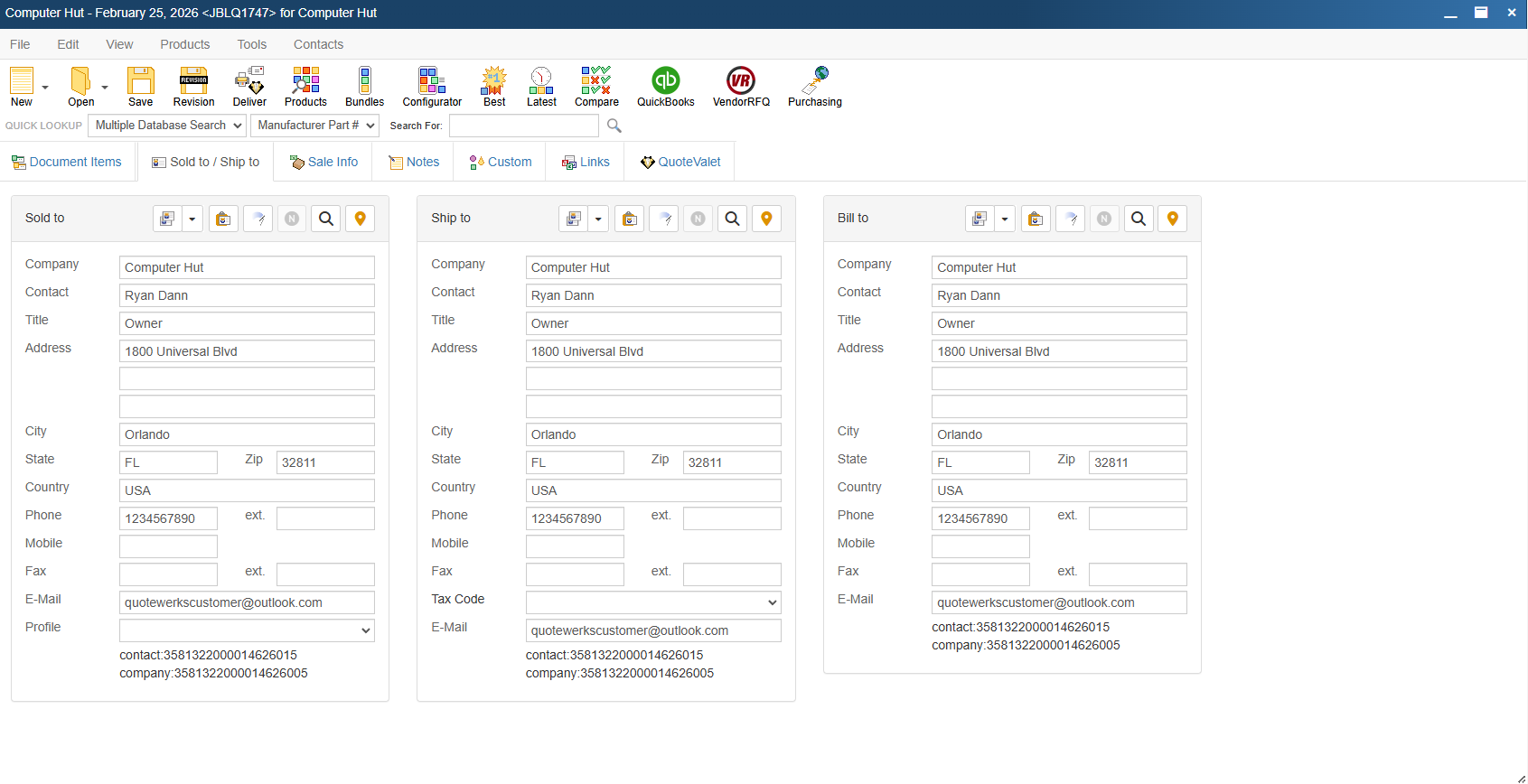
The sold to/ship to tab is where you can add contacts to your document. There are three areas: sold to, ship to, and bill to. The most important contact on this page is your sold to contact as this is the contact that will be addressed on quotes and the email provided for them is the email that will be used for sending QuoteValet links.
To add a new contact to any of the three fields click on the magnifying glass above the field you wish to add them to. This opens the Find Contact window that can query either the native QuoteWerks contact database or a connected database like those offered by your CRM, PSA, or accounting integration. To add a contact insert your search criteria and hit the magnifying glass, select the contact, and next to Use For click Sold to, Ship to, Bill to, or All. This will insert the selected contact into the corresponding fields on the Sold to/Ship to tab.
For more information see the Sold to/Ship to Tab help file.
Sale Info Tab
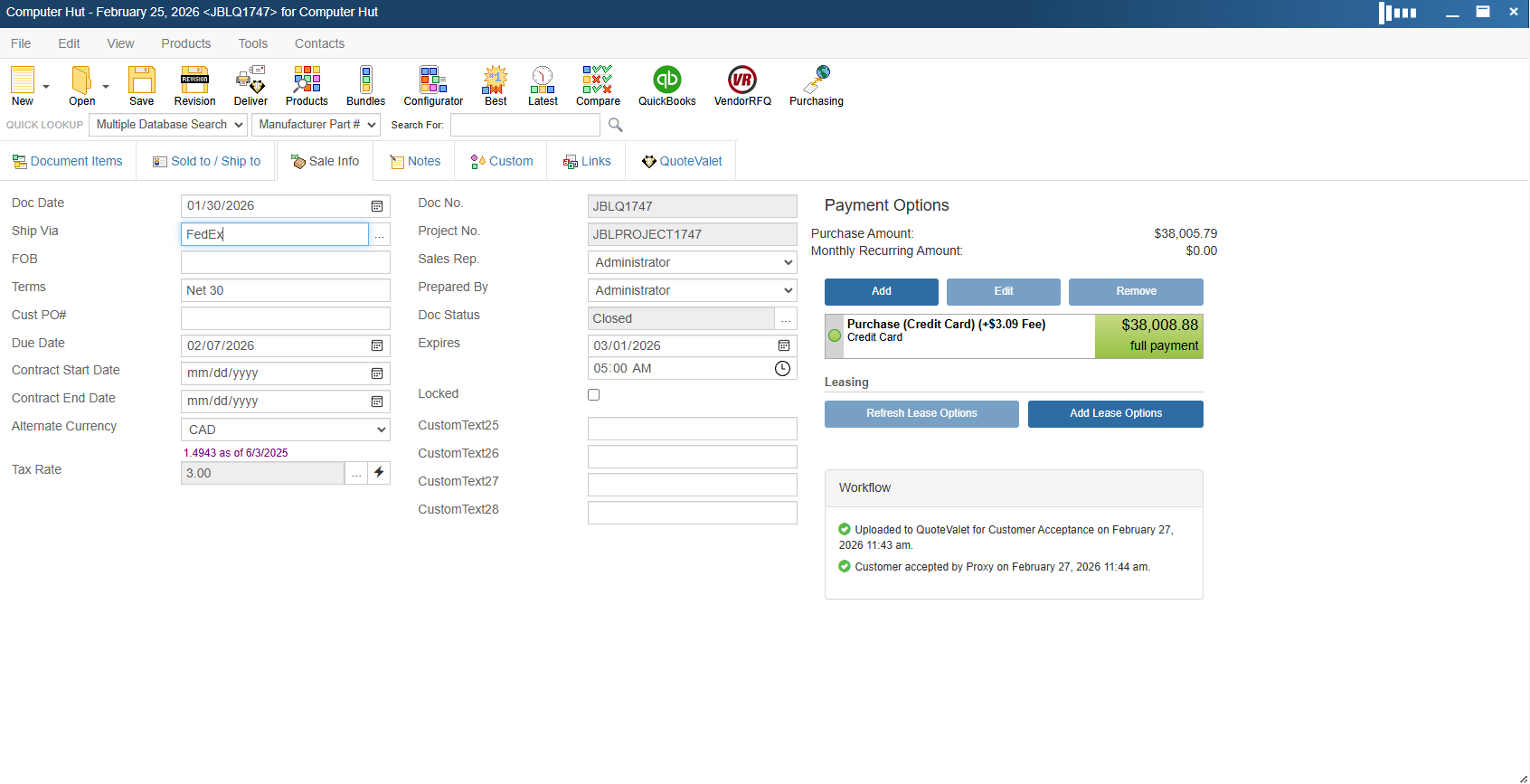
The sale info tab stores additional information important to the overall quote. Here, you can specify a document status, shipping terms, payment terms, payment options, customer PO number, invoice date due, tax rate, alternate currency, sales rep, prepared-by user, and more.
For more information see the Sale Info Tab help file.
Notes Tab
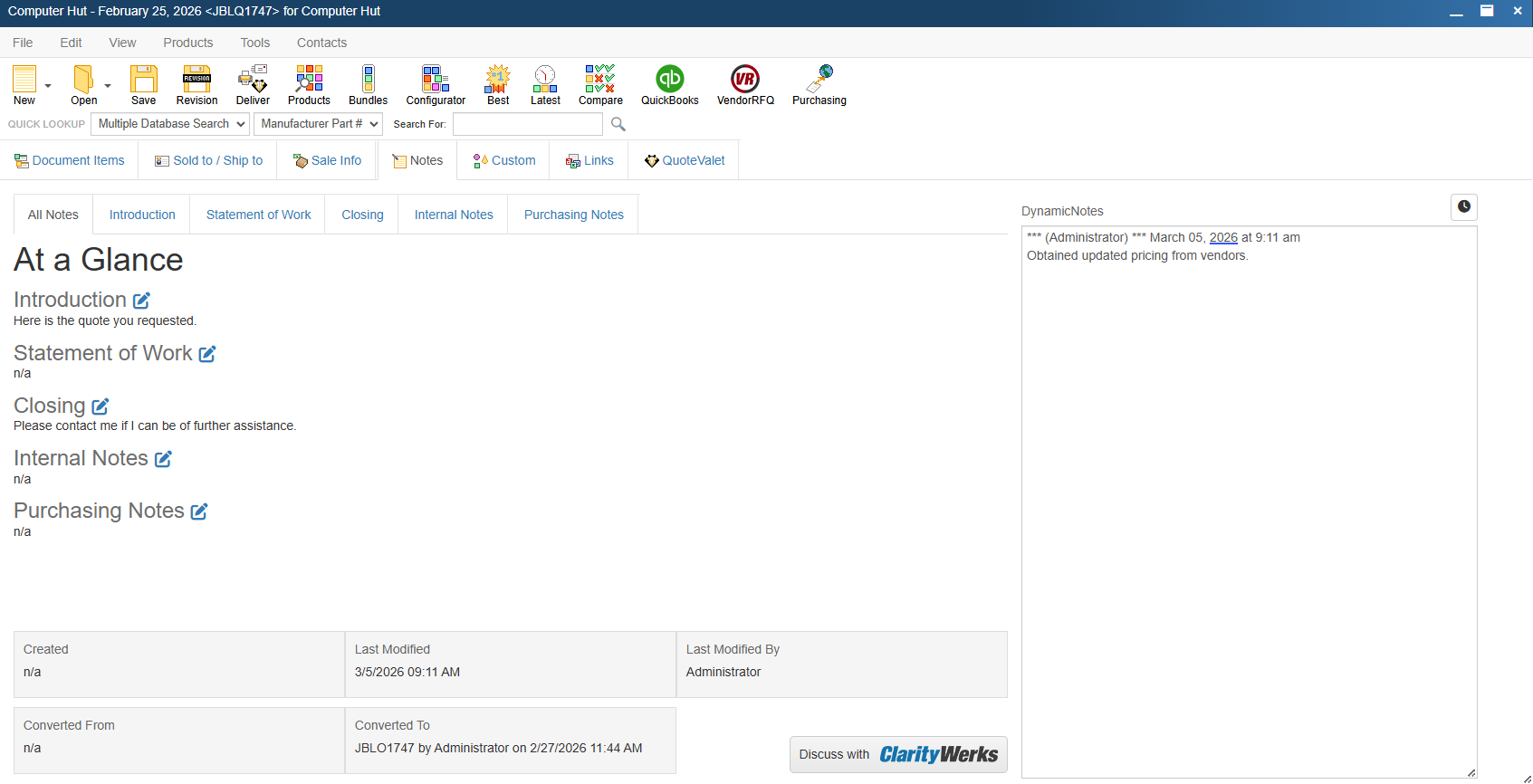
The notes tab is where you can insert different types of text that can be either internal or printed on PDF outputs or QuoteValet quotes. This tab contains Introduction, Statement of Work, Closing, Internal Notes, Purchasing Notes, and Dynamic Notes. Introduction and closing notes are included on most default PDF outputs, but all of these fields can be added to PDFs or QuoteValet outputs by using their corresponding macro values while designing those outputs. All fields on this tab support up to 32,000 characters and all but dynamic notes have support for rich text.
At the bottom of this page you can view the document Created and Last Modified date, who the document was last modified by, and whether the document was converted to or from another document.
For more information see the Notes Tab help file.
Custom Tab
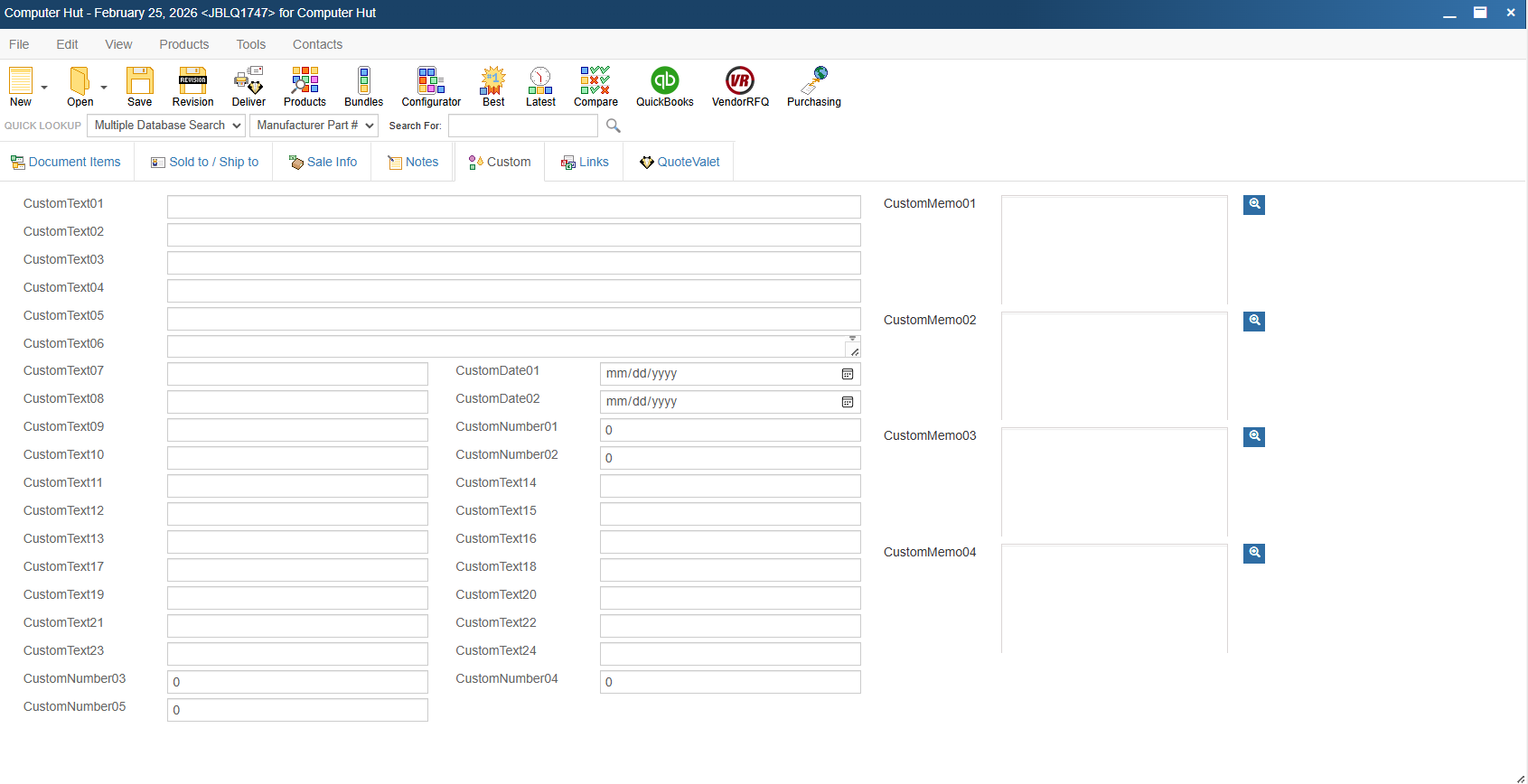
The custom tab allows you to store information related to the quote that QuoteWerks does not already have pre-defined fields for. There are 24 CustomText, 5 CustomNumber, 2 CustomDate fields and 4 CustomMemo fields. These fields are useful if you are pulling in information from external sources like your CRM, PSA, or accounting integration or if you want to simply store data that there are no pre-defined fields for. Examples of this include account IDs, product dimensions, tax codes, and more. The names of these fields can be customized and all custom fields can also be printed on PDF or QuoteValet outputs.
For more information see the Custom Tab help file.
Links Tab
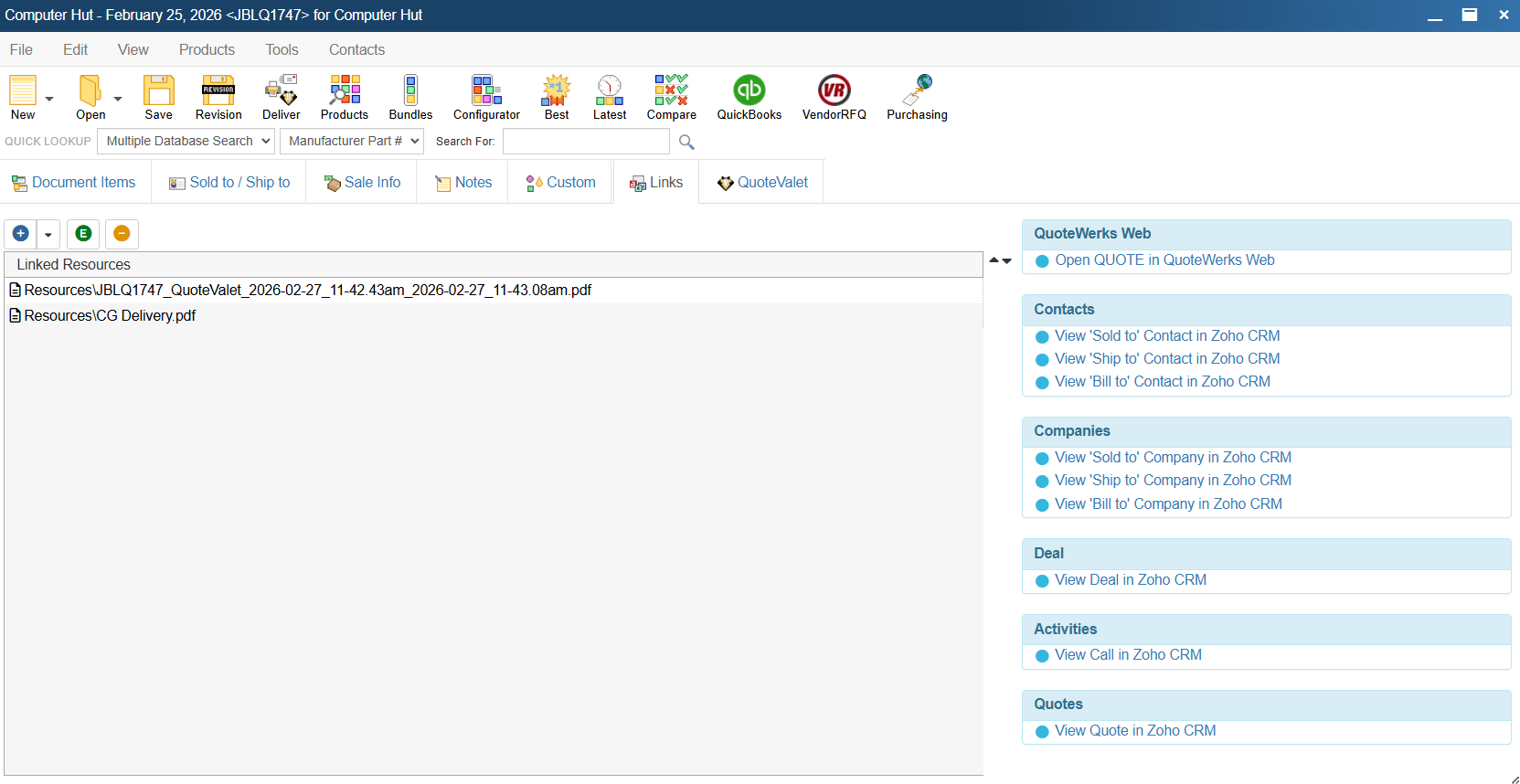
The links tab is where you can add additional linked resources to be stored with a quote and only becomes selectable once a quote has been saved. Linked resources can be internal only, but you do have the ability to add them to PDF outputs as they will display on the Links tab of the Print, Share, Publish, Deliver document window.
Additionally, when you link a contact/company from your CRM or PSA integration or create different assets like and opportunity/deal in those systems, links to those objects in those systems will be displayed along the right-hand side of the window.
For more information see the Links Tab help file.
QuoteValet Tab
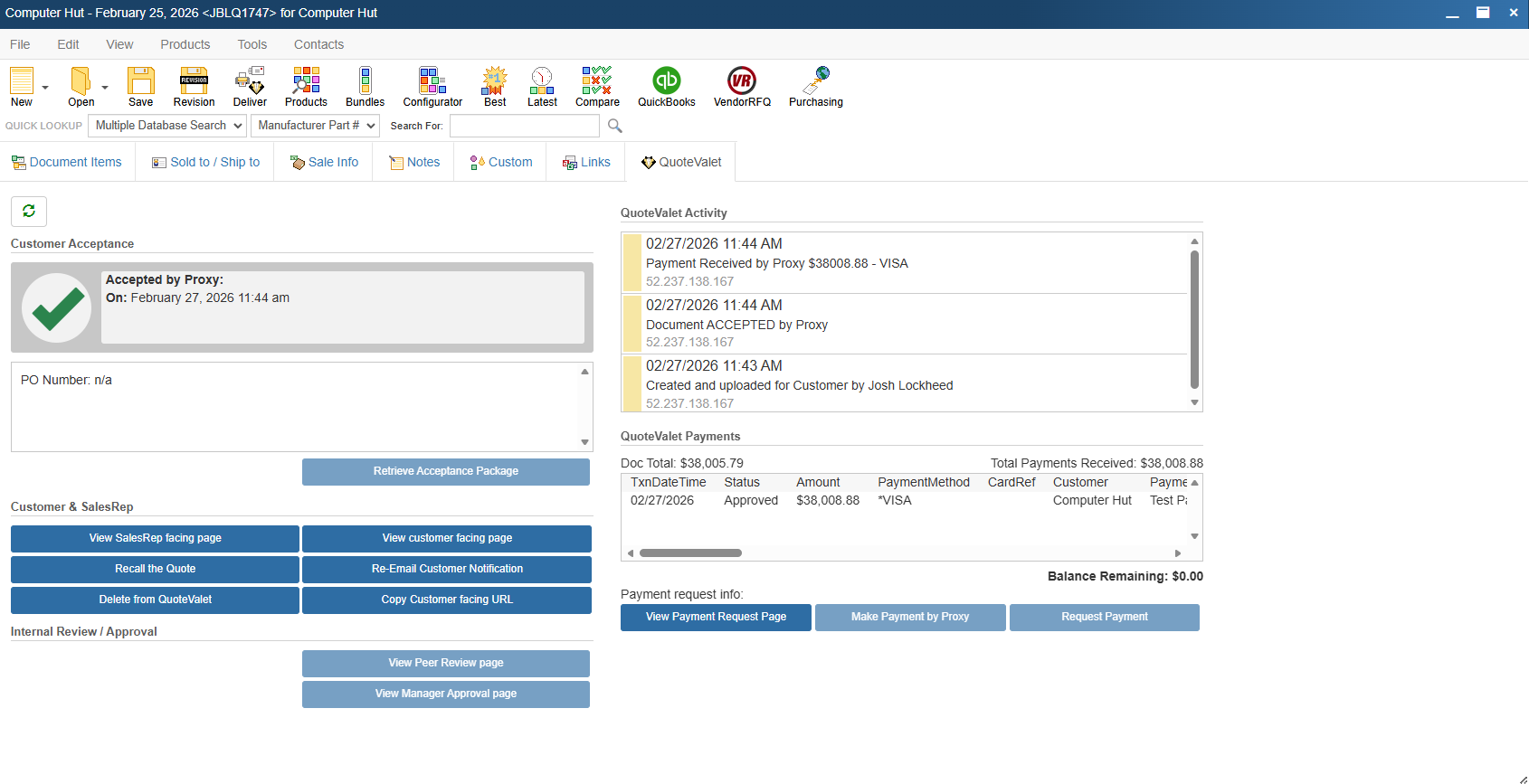
The QuoteValet tab is where you can get a quick overview of QuoteValet activity on a quote and manage a number of actions related to managing interactions with customers. The QuoteValet tab only becomes selectable once a quote has been uploaded to QuoteValet. On this page there are sections where you can view customer acceptance details, QuoteValet activity, customer and sales rep facing pages, peer review and approvals pages, QuoteValet payments, and payment request info.
For more information see the QuoteValet Tab help file.
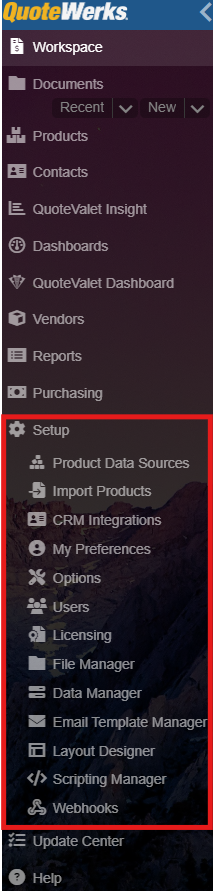
The Setup button on the left navigation panel contains a number of links that give you the ability to configure QuoteWerks. This includes the ability to setup product data sources, integrations, users and user preferences, and a number of options that govern how the software works.
Product Data Sources
Clicking on Product Data Sources opens the Product Data Source window. This is where you can go to set up your internal or externally connect product data sources. These can be lists of products that you maintain from within QuoteWerks or feeds from external sources like your CRM, PSA, or accounting integrations. Once a product data source has been added it can be queried and you can add products and services to your quotes using the Product Lookup window.
The Product Data Source Wizard is a tool that can be used to walk you through the process of creating or connecting to a new product data source. To initiate the Product Data Source Wizard click on the orange new button at the top left of the Product Data Sources window.
For more information see the Creating Native Product Sources or Product Data Source Wizard help files.
Import Products
Clicking on Import Products opens the Import Product Wizard. This is where you should go to import product and service lists into a QuoteWerks native product data source.
For more information see the Importing Products or Importing Products into Folders help files.
CRM Integrations
Clicking on CRM Integrations opens the CRM Integrations Window. Here you can select your primary CRM integration by using the dropdown next to Select Primary CRM Integration. Once you have selected your primary CRM integration you can click on the CRM name from the list of CRMs to configure the integration specific settings.
For more information see the CRM Integrations help file.
My Preferences
This is where you will configure preferences and settings associated with the logged in user’s profile. On this window there are 4 tabs: Personal, E-Mail, Misc, and Contact Manager.
For more information see the My Preferences help file.
Options
Clicking on Options opens the Options window. This window gives you the ability to configure many different settings that govern how QuoteWerks will behave and what your default settings will be.
For more information see the Options help file.
Users
The Users tab is where you can go to create new, or clone, edit, or delete existing users. While you are limited to how many users can be in QuoteWerks at a given time based on your concurrent license count, you can create as many users as you may like. Each person accessing QuoteWerks should have their own user profile. This ensures that their activity is traceable and that they only have access to the things they need to have access to.
For more information see the User Maintenance and Security help file.
Licensing
This page displays your licensing information. This is useful as you can see what you are licensed to use including license counts and expiration dates.
File Manager
Only advanced users should use the File Manager. Improper changes can cause serious issues.
One reason you might use the file manager is to add files to your literature folder that will be selectable when creating your PDF layouts. To do so simply navigate to the literature folder and upload the files you want to be selectable. These files should be files that you will use across multiple quotes on a semi-consistent basis. For one off or quote specific documents it is suggested to use the Links tab in the Quote Workbook instead.
For more information see the File Manager help file.
Email Template Manager
QuoteWerks supports email templates for users. This functionality allows users to create and customize email templates in QuoteWerks for quotes, orders, invoices, and QuoteValet emails. The templates can also be setup for Peer Review and Quote Approvals and Acceptance emails.
There are 2 email templates that are beneficial to review when first starting out. In the Email Templates tab select System from the Owner dropdown menu. The first is EmailQuote. This is the email template used when you send a PDF document to a customer. The second is EmailQuoteValetQuoteIsReady. This is the email template used when you send a QuoteValet e-mail from the Upload to QuoteValet window.
For more information see the Email Template Manager help file.
Layout Designer
The Layout Designer is where you can customize the quote layouts that control how PDF quotes appear when sent to customers. When getting started it is recommended that you use an existing layout and make some basic changes like ensuring your logo is displayed and changing the color of the layout.
For instructions on how to make these basic changes to an existing layout, see the following help file:
If you prefer to start from scratch, you can use the following help articles to learn how to navigate around the layout designer:
•QuoteWerks Web Layout Designer
If you need any further customizations to your quote layouts beyond what you can accomplish in-house, then you can reach out to our Professional Services team (http://www.quotewerks.com/prices.asp#Professional).
Scripting Manager
Scripting in QuoteWerks Web can be used to extend functionality based on system events. The QuoteWerks Web Scripting Environment is where you can write powerful async JavaScript scripts to automate, customize, and extend your quoting workflows. You do not need to know how to code to use the scripting manager as they is an AI assistant that you can prompt in plain text and that can write scripts for you.
For more information see the QuoteWerks Web Scripting Manager help file.
Webhooks
QuoteWerks Webhooks allow you to receive real-time notifications when events occur in your QuoteWerks system. When an event happens (like a quote being accepted), the webhook system automatically sends an HTTP request to your specified URL with details about the event.
For more information see the Webhooks help file.
